
How Can We Help?
Moving your class up a year
This guide gives you step-by-step instructions on moving your class up a year, whether your classes remain the same from year to year, or if your school shuffles the classes when moving children up a year into new classes.
If the children in your classes remain the same from year to year, then follow the steps outlined in the Renaming the class section.
If your school shuffles the classes when moving children up a year and into new classes, then follow the instructions in the Moving students between classes section.
If you need to delete a class you can follow the instructions in the Removing data section.
Please refer to the Choosing courses for your classes guide for detailed instructions on choosing the most appropriate course for each of your classes, based on their coding experience.
Renaming the class
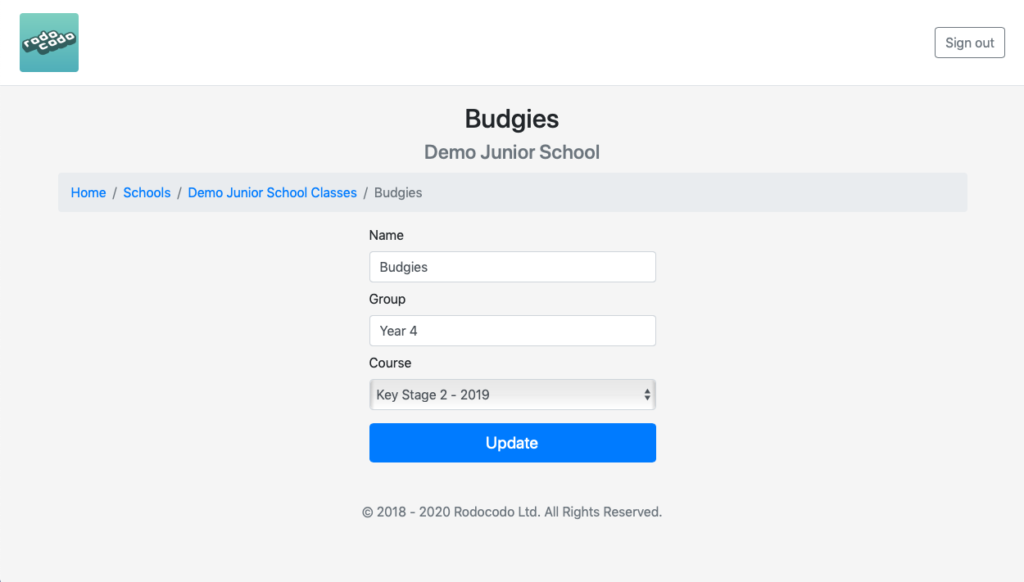
To update your class to the next year. e.g. From Year 3, to Year 4. You simply have to rename the class name, rename the year group, and update the course.
- Log in at https://test.rodocodo.com/admin
- Go to the Classes section.
- Click on the “Edit” button for the class you want to change.
- Change the Name field (e.g. from Budgies to Owls).
- Change the Group field (e.g. from Year 4 to Year 5).
- Change the Course (remember to read the course selection guide to know which course to use for your class!)
- Click the Update button.
- Repeat for all the classes.
Moving students between classes
If you need to move your students between classes, then do the following:
- Log in at https://test.rodocodo.com/admin
- Go to the Classes section.
- Click on the “Students” button.
- Click on the “Edit” button for the child you wish to move class.
- Change the class using the dropdown menu.
Note: If you have many classes to update and don’t want to do it manually, then please get it in touch at [email protected] and we’ll help you automate the process.
All logins for staff and children will remain what they were before, and it will retain their progress on their previous course(s).
Removing data
If you no longer require a class (e.g. the Year 6 class that have just left), then you can delete that class.
- Log in at https://test.rodocodo.com/admin
- Go to the Classes section.
- Click the “Delete” button for the class you wish to remove. Be careful to ensure you are deleting the correct class as it is not reversible!